
FramioCam: Capture Screenshots and Edit Videos in Chrome
October 27, 2026 · By Administrator
You take a screenshot with one tool, open another to add arrows and highlights, then use a separate screen recorder to create a video. If the recording needs editing, that's another application to open.
For developers, educators, support teams, and content creators, these small steps quickly become frustrating.
FramioCam aims to solve this problem by bringing screenshots, screen recording, annotations, and video editing into one Chrome extension.
Instead of moving between multiple tools, you can capture your screen, edit the result, and export it from one workspace.
And the best part? You can get started for free.
What Is FramioCam?
FramioCam is a Chrome extension designed to make screen capture and content creation simpler.
It combines screenshot tools, screen recording, image editing, and video editing in a single application.
You can use it to capture an entire webpage, record a product demonstration, highlight important information, or prepare a tutorial.
Unlike tools that require you to upload recordings to their servers for editing, FramioCam uses a local processing approach. According to its developers, recordings and screenshots remain in your browser's local storage unless you choose to export or sync them.
This makes it an interesting option for people who want more control over their files.
1. Capture Full Webpages Without Missing Important Details
One common problem with ordinary screenshots is that they capture only what you can see on the screen.
What happens when you need to capture a long webpage, a dashboard, or an entire product page?
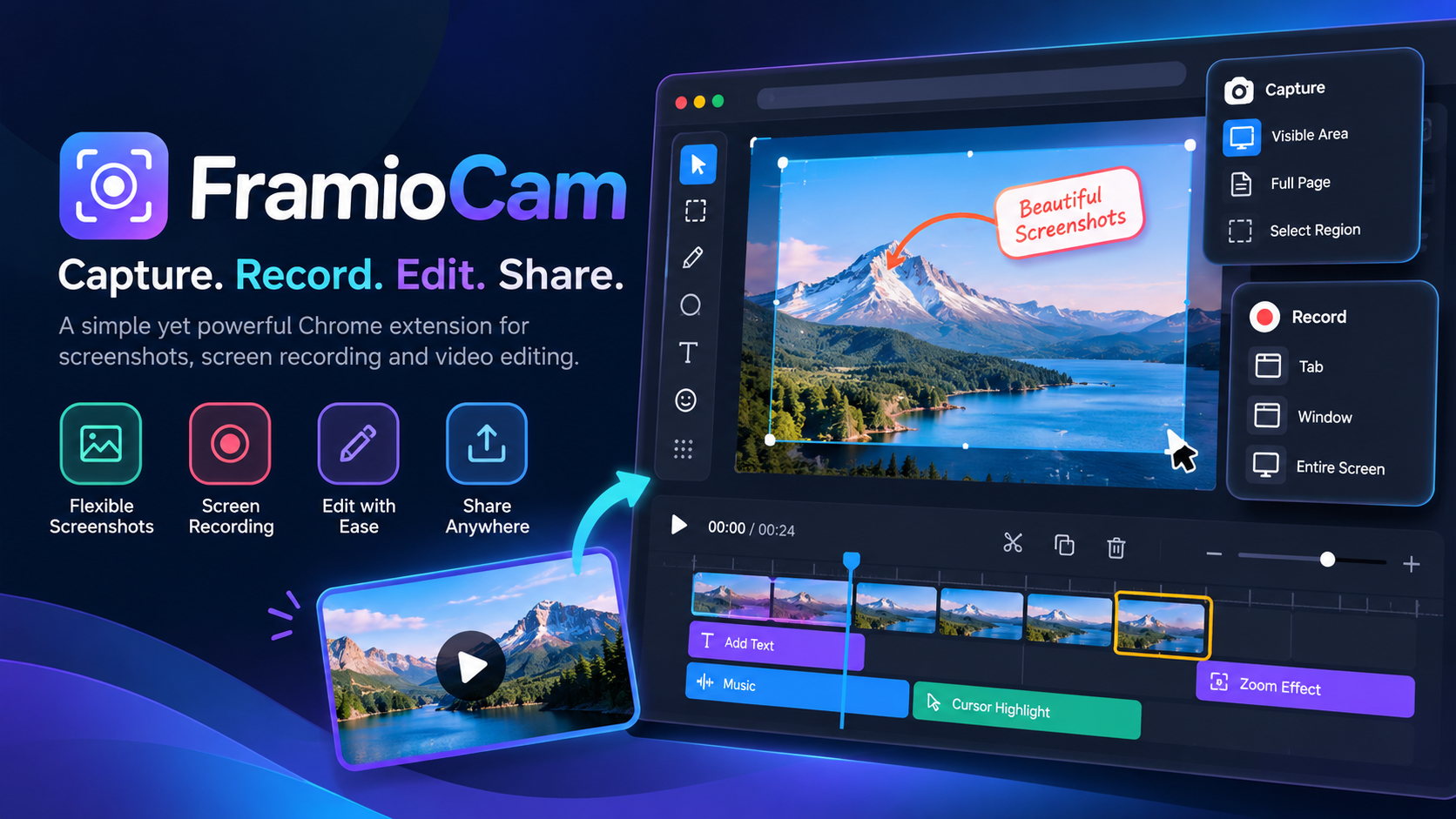
FramioCam supports several capture modes, including visible screen areas, full webpages, selected regions, and full site capture.
For example, a web developer can capture an entire landing page to review its design. A QA tester can capture a specific error message without including unrelated information.
The benefit: You can capture the content you need without manually combining several screenshots.
2. Make Screenshots Clear and Professional
Taking a screenshot is easy. Making it useful is another matter.
Imagine sending someone a screenshot of a complex dashboard. Without any explanation, they might not know where to look.
FramioCam includes a screenshot editor with arrows, text, shapes, blur, spotlight effects, and step annotations.
You can also add window frames, backgrounds, and visual styling to make a screenshot suitable for presentations, product documentation, or social media.
This is useful for customer support agents who need to explain a process visually. It also helps educators and developers prepare tutorials.
The benefit: Instead of sending a plain screenshot and writing several paragraphs, you can show exactly what matters.
3. Record Your Screen for Tutorials and Product Demos
Sometimes a screenshot simply isn't enough.
Suppose you want to explain how a new software feature works. Writing instructions for every button and interaction can take more time than showing the process.
FramioCam lets you record a browser tab, application window, or entire screen. It also supports microphone recording, camera input, and audio capture where supported by your browser and operating system.
You can pause and resume recordings when needed.
This makes it useful for creating product walkthroughs, educational videos, bug demonstrations, onboarding materials, and software tutorials.
The benefit: You can explain a process by showing it rather than relying on lengthy written instructions.
4. Edit Videos Without Switching Applications
Recording a video rarely produces a perfect result on the first attempt.
There might be an unnecessary pause, a wrong click, or a section that needs more explanation.
Normally, you would export the recording and open a separate video editor.
FramioCam includes a timeline editor with tools for trimming clips, splitting recordings, adding text, zooming into important areas, and applying transitions.
One particularly useful feature is its click based zoom functionality. It can help direct the viewer's attention to the area where you interacted with the screen.
Cursor highlighting can also make tutorials easier to follow.
For example, if you are demonstrating an application with many buttons, you can highlight interactions and zoom into the relevant controls.
The editor supports exports such as MP4, WebM, GIF, and image frames. Available formats depend on the browser, device, and plan.
The benefit: You can turn a basic screen recording into a clearer tutorial or presentation without moving to a separate editing application.
5. Keep More Control Over Your Recordings
Privacy is an important consideration when recording your screen.
A recording might contain internal software, customer information, project details, or unfinished designs.
FramioCam states that its capture and editing processes run locally rather than uploading your media to its own servers.
Paid plans also support optional Google Drive sync. Files are transferred to your own Google Drive account, according to the product documentation.
This provides another option for accessing projects across devices.
However, local processing does not automatically guarantee that every recording is safe for confidential information. Always review browser extension permissions and your organization's security requirements before capturing sensitive content.
The benefit: You can edit locally and decide when and where your finished content is shared.
Who Can Benefit From FramioCam?
Software developers and QA testers
Record bugs, capture application states, and create visual instructions for reproducing issues. A short annotated recording can be much clearer than a long bug report.
Educators and online course creators
Prepare tutorials, explain software tools, and turn screen recordings into instructional videos.
Customer support teams
Show customers how to complete tasks, highlight important buttons, and prepare reusable visual guides.
Product teams and startup founders
Create demonstrations of new features, record prototype walkthroughs, and share product updates with stakeholders.
Freelancers and content creators
Capture portfolio projects, prepare walkthroughs, and produce visual content for clients without needing a separate tool for every step.
FramioCam Pricing: Free vs Pro
FramioCam offers a free Chrome extension and optional paid plans.
| Feature | Free | Pro |
|---|---|---|
| Screenshots | Unlimited with free account | Unlimited |
| Screen recording | Included | Included |
| Screenshot and video editors | Included | Included |
| Video export | Up to 720p | Up to 4K |
| Studio export watermark | Yes | Removed |
| Google Drive sync | Not included | Included |
| Devices | 1 | 2 |
| Price | $0 | $19 one time |
The free plan is not a time limited trial. You can take up to 50 screenshots without creating an account. A free account removes that limit and is required for video export.
FramioCam also offers paid team plans, starting at $39 for three people. The company advertises a 30 day refund policy for paid plans.
These prices and limits are based on the published Chrome extension pricing in October 2026. Always confirm the latest terms before buying.
How to Get Started With FramioCam
Visit FramioCam and install the Chrome extension.
Choose whether to capture a screenshot or record your screen.
Open the result in the built in editor. Add annotations, trim your recording, or customize its appearance.
Export your finished screenshot or video. Create a free account if you want to export video.
You can try the main capture and editing features before deciding whether a paid plan is necessary.
What Should You Consider Before Using It?
FramioCam is worth exploring, but it might not be the right solution for everyone.
It is primarily a browser based capture and editing tool. The Chrome extension is available now, while a separate native Mac application is still under development.
It also focuses on local content creation. If your workflow depends heavily on hosted video libraries, enterprise collaboration, or extensive cloud based review features, you should compare those requirements with its current capabilities.
Finally, the free plan adds a watermark to Studio exports and limits video resolution. Users who need clean, higher resolution exports may find the Pro plan more suitable.
Final Thoughts: Is FramioCam Worth Trying?
FramioCam addresses a simple but common productivity problem: creating useful visual content often requires too many tools.
Its combination of webpage capture, screen recording, screenshot annotations, video editing, and local export makes it an appealing option for developers, educators, freelancers, and small teams.
The free version provides a practical way to explore the features. The one time Pro upgrade may appeal to people who frequently create polished tutorials and product demonstrations but want to avoid another monthly subscription.
If you regularly capture screenshots, explain software features, or record tutorials, FramioCam is worth adding to your list of tools to try.
Want to simplify your screen capture workflow?
Disclaimer: This article is based on the official product documentation and published features. Features and pricing may change.
More from the blog
From synthetic enterprise data evaluations to real Microsoft Copilot AI confidence
Evaluating Microsoft Copilot at enterprise scale requires test data that captures the full complexity of real organizations, yet real enterprise data contains sensitive information that cannot be used for evaluation under any circumstances. The post From synthetic enterprise data evaluations to real Microsoft Copilot AI confidence appeared first on Microsoft Research.
Microsoft Research Focus – Edition #97
Host Sowbhagya Suresh shares some of the latest news and cutting-edge research from across Microsoft—from understanding the challenges facing coding agents to uncovering how people use AI at work and improving extended-range weather forecasting. The post Microsoft Research Focus – Edition #97 appeared first on Microsoft Research.

New tool lets users repair AI-generated 3D models, then fabricate them just the way they want
“InstructMesh” can generate designs for everyday objects that are easy to edit and fabricate for both experts and newcomers to 3D modeling.
Automating coherent long-form video generation
Generative AI
Related papers
SemanticAdv: Generating Adversarial Examples via Attribute-conditional Image Editing
An algorithm is proposed which leverages disentangled semantic factors to generate adversarial perturbation by altering controlled semantic attributes to fool the learner towards various "adversarial" targets.
MemoryArena: Benchmarking Agent Memory in Interdependent Multi-Session Agentic Tasks
MemoryArena is introduced, a unified evaluation gym for benchmarking agent memory in multi-session Memory-Agent-Environment loops with explicitly interdependent subtasks, where agents must learn from earlier actions and feedback by distilling experiences into memory, and subsequently use that memory to guide later acti...
Spikformer V2: Join the High Accuracy Club on ImageNet with an SNN Ticket
This work introduces a pioneering exploration of Self-Supervised Learning (SSL) within the SNN, and proposes a novel Spiking Self-Attention (SSA) and Spiking Transformer (Spikformer) that achieves 80+% accuracy on ImageNet.
Generative AI for Autonomous Driving: Frontiers and Opportunities
This survey delivers a comprehensive and critical synthesis of the emerging role of GenAI across the autonomous driving stack, delving into the frontier applications of GenAI in image, LiDAR, trajectory, occupancy, and video generation, as well as LLM-guided reasoning and decision-making.